Storage
Settings → Storage shows the workspace's shared storage usage. Cloud storage is a plan allowance measured in bytes; it does not consume credits. Every project in the workspace shares it.
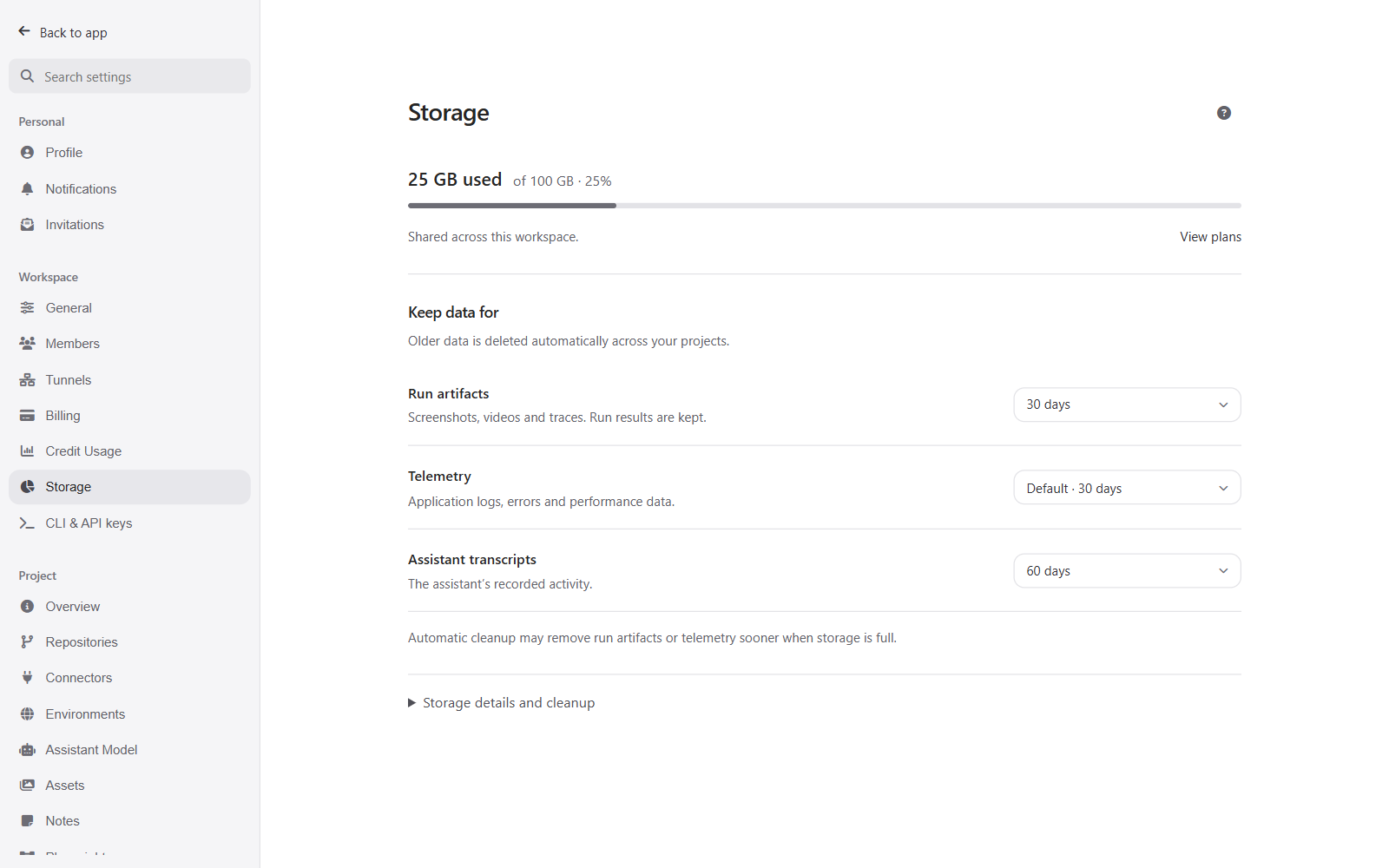
Keep data for
The main controls set retention for three types of data:
| Type | What the setting removes |
|---|---|
| Run artifacts | Older screenshots, videos, and traces. Run results are kept. |
| Telemetry | Older application logs, errors, and performance data. |
| Assistant transcripts | Older records of the Assistant's activity. |
Cloud telemetry defaults to 30 days. Run artifacts and transcripts have no age limit unless you set one. Choose the duration shown in each row; existing custom durations remain available.
Storage details and cleanup
Expand Storage details and cleanup for usage by category and project. Under When storage is full, choose whether TestVibe may remove the oldest run artifacts and telemetry to free space. This cleanup can remove them before their retention period ends. Turning it off does not disable a retention period you chose.
Tests, chats, notes, and other project content are not given automatic age-based cleanup controls. Use Manage project storage to review and manually clear supported categories. Features remain the source of your tests and cannot be cleared from that panel.
Cloud Free workspaces that have no run activity for 30 days can also have their telemetry, run artifacts, and Assistant transcripts removed by the inactivity policy. This does not delete the project or its feature definitions.
Plan allowance
The Storage panel shows the allowance for the active workspace. The standard plan allowances are Free 1 GB, Personal 10 GB, Team 100 GB, Business 500 GB, and Enterprise 1 TB; negotiated or administrator-managed plans can differ. Select View plans to open Billing.
When a cloud workspace is over quota, new artifact-producing work and uploads can be refused with Storage full. Existing runs can finish, and you can still read or delete data. Deleting data refreshes usage; return to Storage if a gate has not cleared yet.
Self-hosted storage
Self-hosted instances have no plan quota or quota eviction, and no Free-inactivity purge. All three retention periods are opt-in; unset means no age limit, including telemetry. Operators remain responsible for backups and disk capacity.
Older self-hosted releases had a quota-cleanup defect. If you run an old image, review its version and the release notes rather than assuming a current policy applies to it.