Sign In
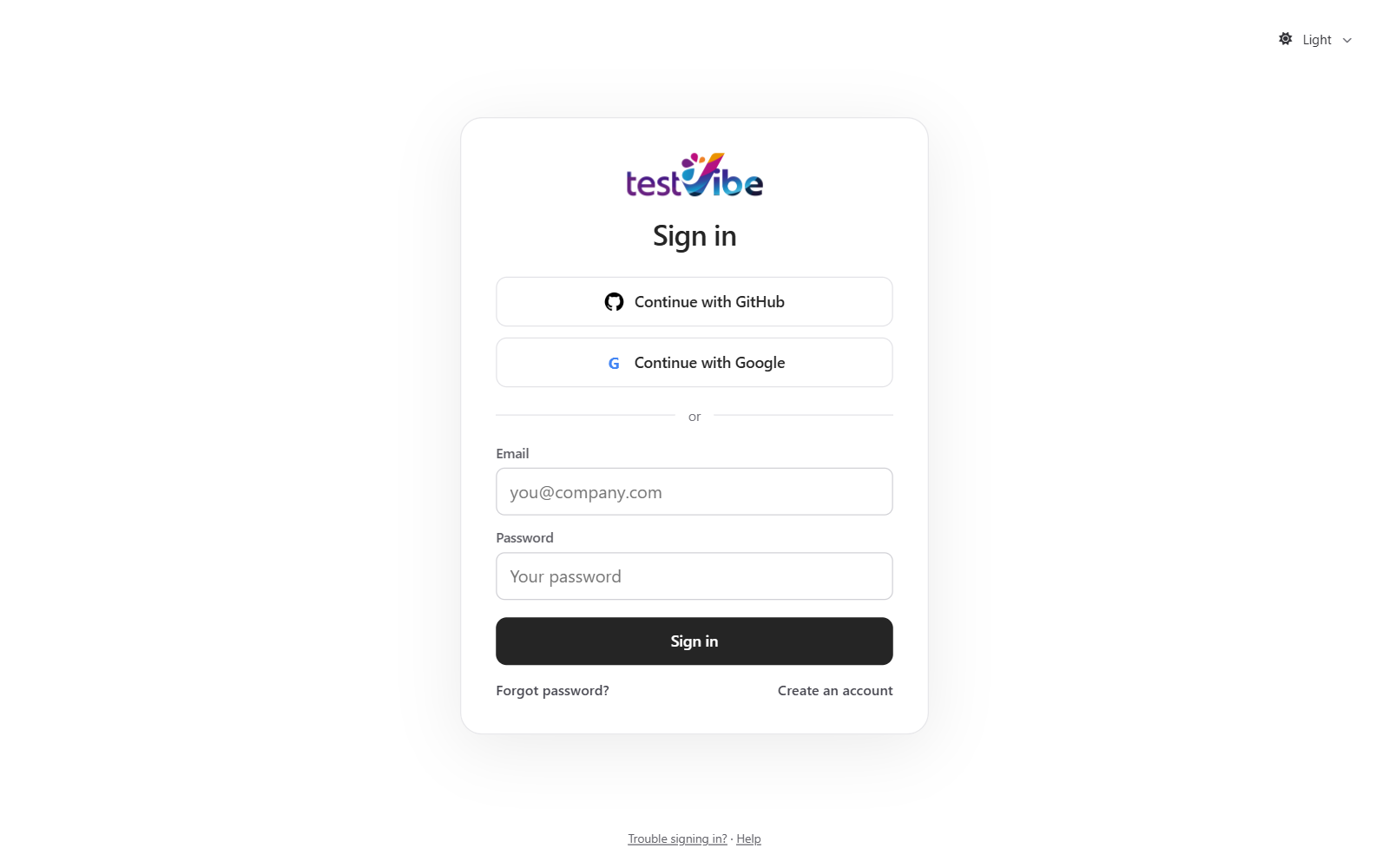
TestVibe supports three sign-in methods: email and password, GitHub, and Google. All three are identity-only — TestVibe never asks for repository permissions at sign-in.
Steps
- Open TestVibe.
- Choose a sign-in method:
- Email and password — create a local account, or sign in if you already have one.
- Continue with GitHub — complete the GitHub authorization flow.
- Continue with Google — complete the Google sign-in flow.
- If you created a local account, check your inbox and verify your email address. Verification is required before your first sign-in — unless you signed up through an invite link, see below.
- Return to TestVibe and wait for it to load your workspaces and projects.
If you are already signed in to GitHub or Google in the browser, the provider may skip some prompts and return you to TestVibe automatically.
If You Followed An Invite Link
Opening a workspace invite link changes what you see: the sign-in screen replaces its usual headline with "You've been invited to <workspace name>" and names who invited you, so the invitation — not a generic pitch — is the first thing you read.
- Your invited email address is pre-filled and, if you create a new account, locked to that address — signing up as anyone else would not match the invitation.
- Creating an account through the invite link skips the separate email-verification step: possession of the mailed invite link is treated as proof of the address, so you go straight into the app instead of waiting on a confirmation email.
- Either way — new account or an existing one you sign in to — you land directly in the invited workspace, already a member, with no "create your first project" screen in between.
What Sign-In Is Used For
Sign-in only confirms who you are. After that, TestVibe:
- places you in your personal workspace (every user gets one)
- shows any team workspaces you have been invited to
- shows the projects you can open
Connecting GitHub for repository access — reading a source repository or exporting project files — is a separate, optional step you can take later from project settings. It is never part of sign-in.
If You Get Stuck
| Problem | What to try |
|---|---|
| You signed up with email but cannot sign in | Verify your email address first — check your inbox (and spam) for the verification message. |
| You forgot your password | Use the password reset link on the sign-in screen; you will receive a reset email. |
| You do not return to TestVibe after a GitHub or Google sign-in | Refresh TestVibe and start sign-in again. |
| You signed in with the wrong account | Sign out of TestVibe (and the provider, if needed), then sign in again with the correct account. |
For more, see Sign-in problems.
Next
Continue to Create a project.