> For the complete documentation index, see [llms.txt](https://docs.testvibe.com/llms.txt). Markdown versions of documentation pages are available by appending `.md` to page URLs; this page is available as [Markdown](https://docs.testvibe.com/run-tests/run-one-test.md).

# Run One Test

Run one test when you want to verify a new scenario, check a recent change, or investigate one failing case without waiting for a larger suite.

Single-test runs are the safest first step after generating Playwright code. They confirm that the target site, cloud test session, configuration, and test steps all work together.

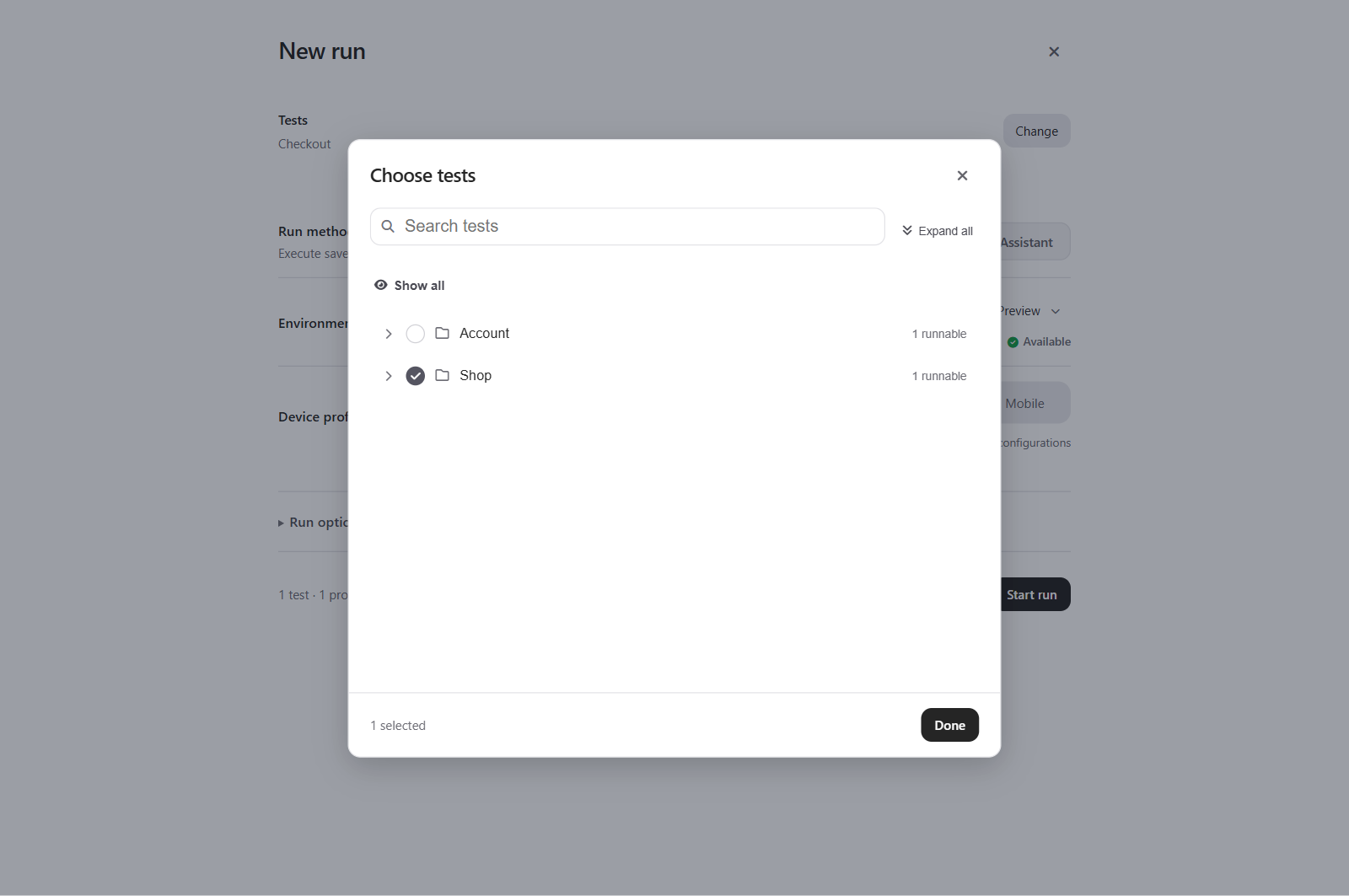
![The new run composer](/files/224bzDqu1jounfPuyUk3)

## Before you start

Make sure the test has generated Playwright code. A Gherkin feature alone is not enough to execute in Playwright.

You also need:

| Item              | What to check                                                                                |
| ----------------- | -------------------------------------------------------------------------------------------- |
| Site URL          | The application URL the cloud test session should open.                                      |
| Run configuration | The browser, viewport, and Playwright settings for the run.                                  |
| Site access       | The cloud test session must be able to reach the site; use a tunnel device for private apps. |
| Secrets           | Any credentials or API keys the test needs, stored in **Settings > Variables & Secrets**.    |

## Start from Features

1. Open **Features**.
2. Select the test you want to run.
3. Choose the run action for that test.
4. Confirm the **Environment**.
5. Select one or more **Run Configurations**.
6. Start the run.

TestVibe opens the run details so you can follow progress as soon as the run is created.

A generated feature's header also shows its own **run pill** (passed, failed, or running). Selecting it does not open the whole run — it jumps straight to that feature's own Runs tab and expands that feature's part of the run.

## Start from Runs

You can also start from the Runs view — this composer is the same one every "Run" action opens:

1. Open **Runs**.
2. Select **New Run**.
3. In the test list, check only the test you want to execute.
4. Under **Environment**, pick a configured environment (or a Custom URL).
5. Select one or more **Run Configurations**.
6. Optionally set **Execution** — **Auto** (recommended), **Sequential — one at a time**, or **Custom** — to control how many scenarios run at once. For a single test this rarely matters; it becomes more useful when you widen the selection later.
7. Start the run.

Use this path when you want to choose the test and configuration in one place.

## Watch the result

While the run is active, TestVibe shows the run moving through live states such as queued, setting up, running, and finalizing. Individual test rows appear once the cloud test session has produced an execution plan.

Every run gets its own deep link, so the browser's address bar (and any link you copy from the Share menu) reopens that exact run — useful for pointing a teammate straight at a result instead of describing how to find it.

After the run finishes:

| Result    | Next step                                                                                      |
| --------- | ---------------------------------------------------------------------------------------------- |
| Passed    | Run the related group or add the test to a larger regression run.                              |
| Failed    | Open the failed row and review screenshots, videos, traces, console logs, and network details. |
| Cancelled | Re-run when the site or selected configuration is ready.                                       |

For status details, see [Understand live run status](/run-tests/understand-live-run-status.md). For result evidence, see [Review Results](/results.md).


---

# Agent Instructions
This documentation is published with GitBook. GitBook is the documentation platform designed so that both humans and AI agents can read, navigate, and reason over technical content effectively. Learn more at gitbook.com.

## Querying This Documentation
If you need additional information that is not directly available in this page, you can query the documentation dynamically by asking a question.

Perform an HTTP GET request on the current page URL with the `ask` query parameter, and the optional `goal` query parameter:

```
GET https://docs.testvibe.com/run-tests/run-one-test.md?ask=<question>&goal=<endgoal>
```

`ask` is the immediate question: it should be specific, self-contained, and written in natural language.
`goal` is optional and describes the broader end goal you are ultimately trying to accomplish on behalf of the user. GitBook uses it to tailor the answer towards what is most useful for that goal.

The response will contain a direct answer to the question and relevant excerpts and sources from the documentation.

Use this mechanism when the answer is not explicitly present in the current page, you need clarification or additional context, or you want to retrieve related documentation sections.