# Dashboard

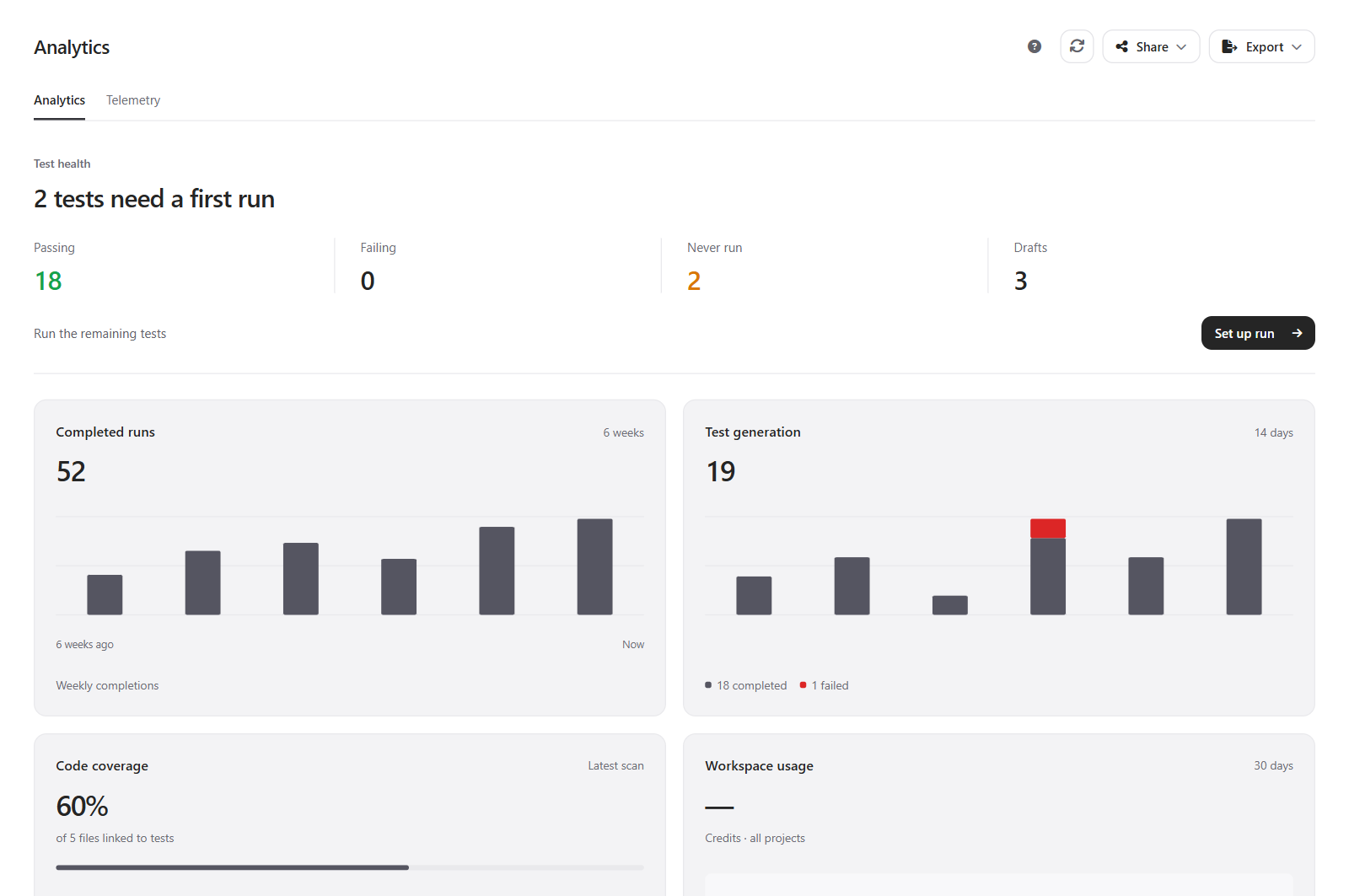
The dashboard is a workspace overview for the selected repository. It brings together recent run health, feature coverage, workflow activity, and suggested next actions so you can decide where to go next without opening each area one at a time.

## What You Can Review

| Area              | What it shows                                                                        |
| ----------------- | ------------------------------------------------------------------------------------ |
| Run health        | Recent pass, fail, skipped, queued, and running status across the repository.        |
| Feature coverage  | Which groups and features have generated tests, recent results, or missing coverage. |
| Workflow activity | Recent generation and run workflows connected to the repository.                     |
| Result trends     | A quick sense of whether the suite is improving, failing, or waiting on work.        |

## Common Actions

* Open a failed or recent run to inspect screenshots, videos, traces, console output, and network evidence.
* Open a feature or group when coverage needs authoring or regeneration.
* Start a new run when the dashboard shows stale or missing results.
* Share or export dashboard details when you need to send status to someone else.

## When To Use It

Use the dashboard when you want orientation before choosing a detailed view. Use the Test Suite when you already know which feature to edit, and use Runs when you already know which execution result to investigate.

## Related Help

* [Understand the Test Suite](/create-tests/test-suite-overview.md)
* [Run Tests](/run-tests.md)
* [Review Results](/results.md)


---

# Agent Instructions: Querying This Documentation

If you need additional information that is not directly available in this page, you can query the documentation dynamically by asking a question.

Perform an HTTP GET request on the current page URL with the `ask` query parameter:

```
GET https://docs.testvibe.com/workspace/dashboard.md?ask=<question>
```

The question should be specific, self-contained, and written in natural language.
The response will contain a direct answer to the question and relevant excerpts and sources from the documentation.

Use this mechanism when the answer is not explicitly present in the current page, you need clarification or additional context, or you want to retrieve related documentation sections.